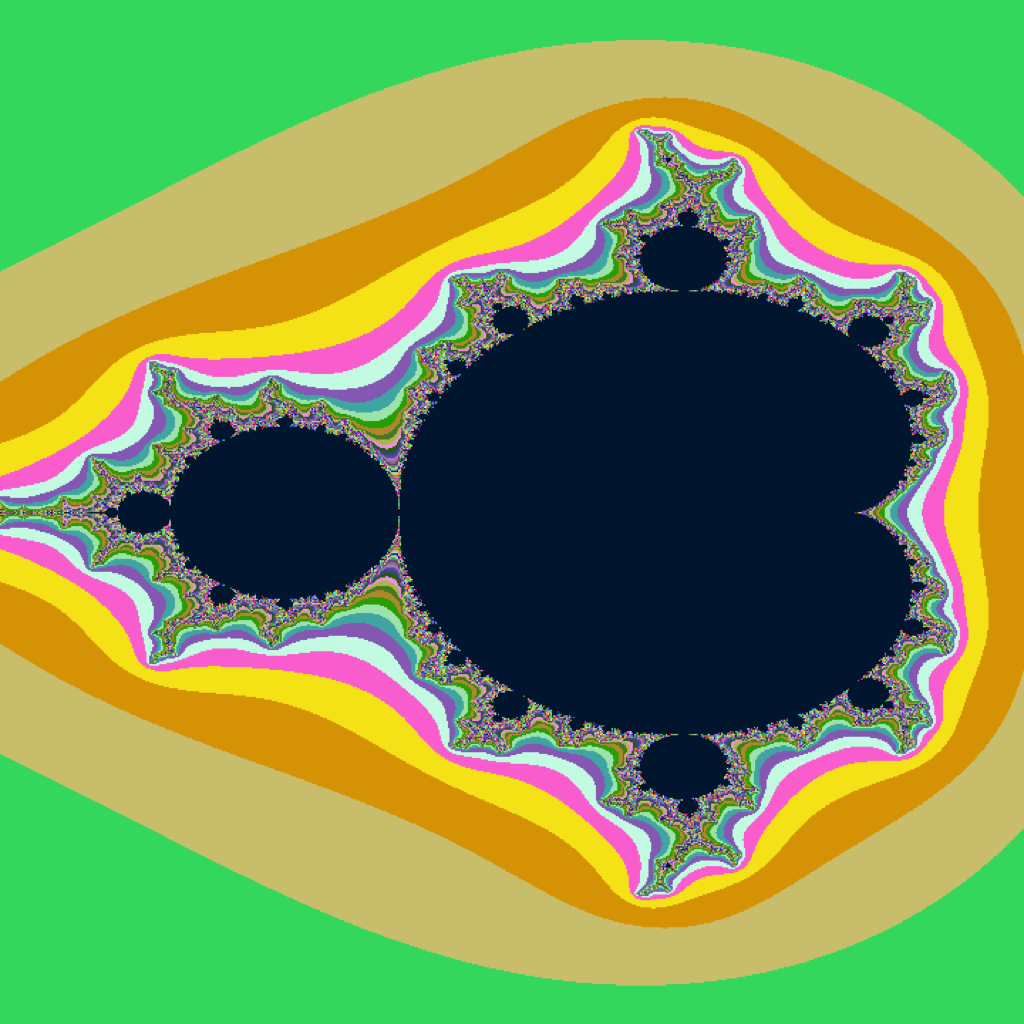
On the Mac, ADVANCED MODE turns the constants that shape DoomFracting's look into sliders. This page explains every one of them: the effect it belongs to, the mathematics it plugs into, its range and default, and what happens when you push it up or down. It repeats a little of The Mathematics on purpose, so each part can be read on its own.
ADVANCED MODE: how it works
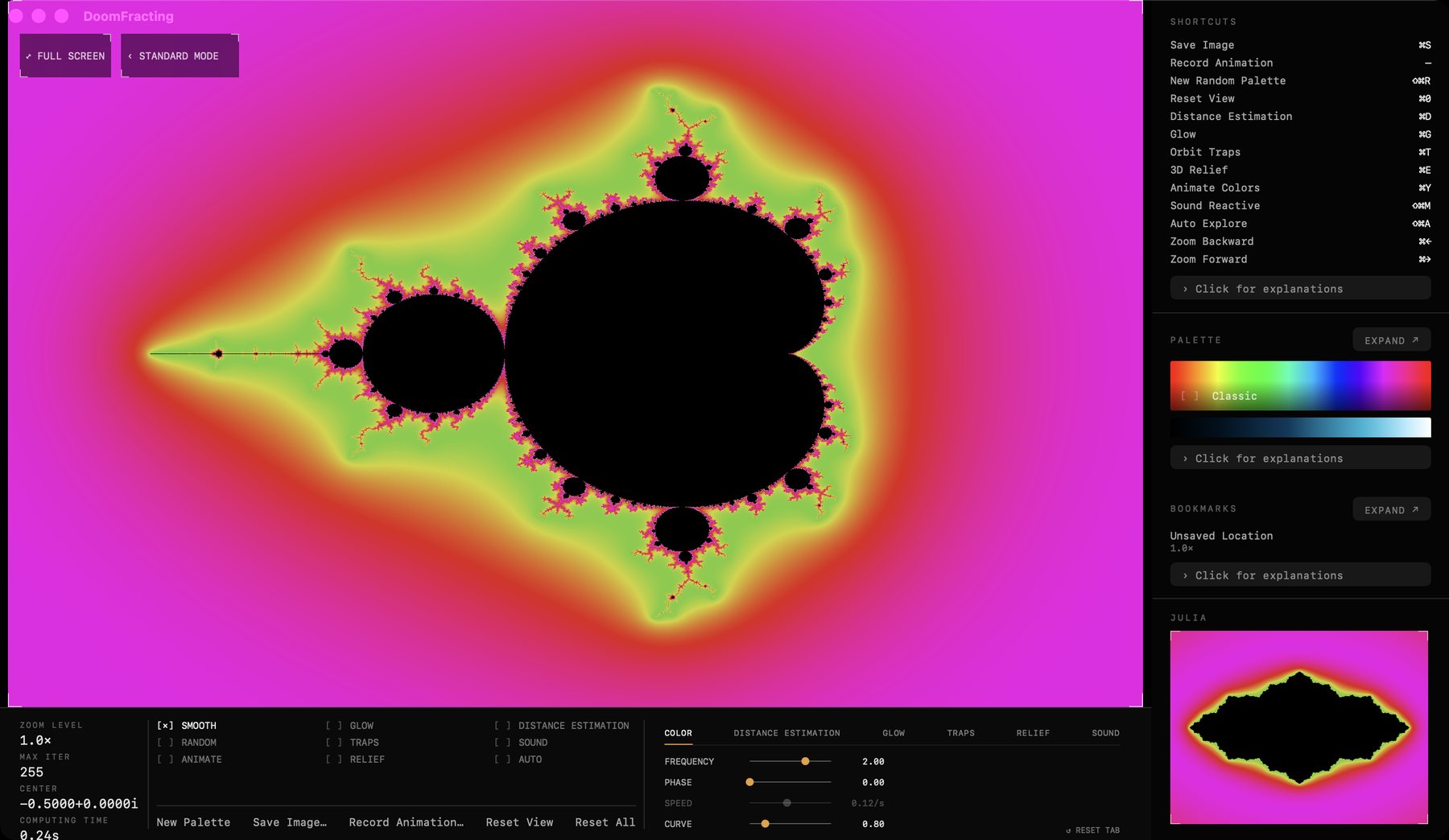
A tag beside FULL SCREEN, at the top left of the render area, switches the window into ADVANCED MODE (it then reads ‹ STANDARD MODE). The standard window is exactly what it always was; nothing changes until you ask.
The panel
- Six tabs: COLOR, DISTANCE ESTIMATION, GLOW, TRAPS, RELIEF and SOUND, each showing up to eight sliders in two columns.
- Tabs follow the toggles. A small amber dot on a tab means that effect is switched on in the toggle grid, and switching an effect on brings its tab forward. The tabs of effects that are off stay open, so you can prepare a look before you turn it on.
- Layout. Wide windows put the panel beside the toggles. In a narrower window the bar stays as it is in standard mode and the same panel floats just above it. Full screen hides it, and the tuned values carry on.
Working the sliders
- Drag the track to change a value. Only the track moves a slider; clicking the label or the read-out never does.
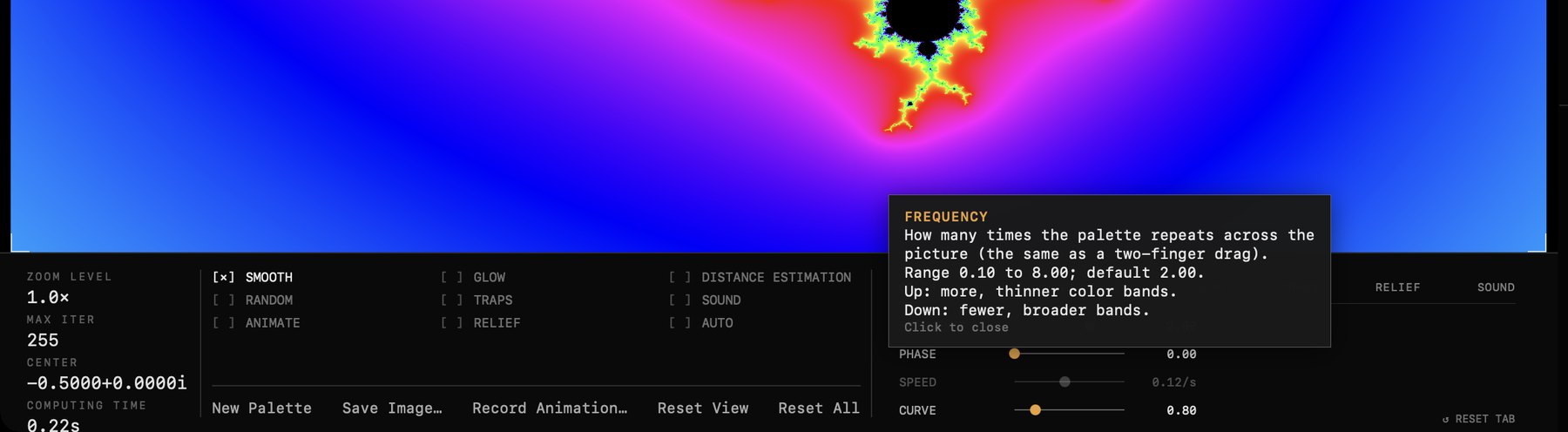
- Click a label and a small card opens right over it with what the slider does, its range and default, and what up and down do. Click the card (which now covers the label), or do anything else, to close it.
- Option-click a slider to reset it, double-click its value to type a number, and use RESET TAB to reset the whole tab. Reset All in the actions row resets every slider.
Defaults, memory and bookmarks
- Every default is the value the app always used. A slider you have not touched changes nothing, and with all sliders at their defaults the picture is identical, pixel for pixel, to standard mode.
- Values keep applying in standard mode. To stop a tuned look from having no visible cause, a small amber dot appears on the ADVANCED MODE tag whenever any value is off its default.
- Remembered. Values and the mode itself are restored the next time you open the app. A bookmark saved with tuned look values (curve, distance estimation, glow, traps or relief) remembers them on that Mac. Share links do not carry them, and the other DoomFracting apps, which have no sliders, ignore them.
Reading the tables below: log means the slider moves evenly in multiplications rather than steps, so each part of a wide range gets the same room. Up and Down describe what happens as you drag right or left.
COLOR
The effect
Every pixel that escapes gets a number: how many iterations its orbit took, made continuous so there are no visible rings (see Part II of The Mathematics). The palette is a ring of 256 colors, and this tab decides how that number lands on the ring: how many times the ring repeats, where it starts, how fast it spins by itself, and where the color changes bunch up.
The maths
The smooth escape count \(\nu\) is compressed logarithmically into \(t\), raised to the CURVE exponent, spread over the palette by FREQUENCY, and shifted by PHASE:
The color is then read from the palette at position \(u\), blending the two nearest of its 256 entries so there is no banding. Interior points are always black. ANIMATE simply adds \(\text{SPEED}\times\text{time}\) to the phase, which is why a recording of one full cycle lasts \(1/\text{SPEED}\) seconds.
The parameters
| Slider | Range | What it does |
|---|---|---|
| FREQUENCY | 0.1 – 8default 2.00 · log | How many times the palette repeats across the whole range of escape times. The same as a two-finger drag. Up more, thinner color bands.Down fewer, broader bands. |
| PHASE | 0 – 1default 0.00 | Where the palette starts: a full turn of the ring. The same as a one-finger drag. Up shifts every color forward around the palette.Down shifts them back. |
| SPEED | 0.02 – 1.0 /sdefault 0.12/s · log | How fast ANIMATE turns the palette (in full cycles per second), and how long Record Animation lasts (one cycle, so \(1/\text{SPEED}\) seconds). Only active while ANIMATE is on. Up faster cycling, shorter recordings.Down slower cycling, longer recordings. |
| CURVE | 0.4 – 2.5default 1.00 | The exponent on \(t\): how escape time is spread over the palette. At 1 the mapping is the usual logarithmic one. Up colors flatten out in the far field while the set's edge gets more variety.Down the variety spreads out into the far field. |
DISTANCE ESTIMATION (DEM)
The effect
Distance estimation darkens pixels that sit very close to the true edge of the set, which gives a crisp, anti-aliased boundary and reveals hairline filaments that ordinary coloring loses. With the two sliders below it stops being just an anti-aliasing aid and becomes a deliberate style: an inked outline, thin or bold, sharp or soft.
The maths
The Hubbard–Douady estimate gives, for every pixel, a distance \(d\) to the set (Part III of The Mathematics). Because \(d\) spans dozens of orders of magnitude, it is compared with the pixel size on a \(\log_2\) scale. The pixel's color is multiplied by
So \(\alpha = \tfrac12\) exactly where \(d = 2^{\text{thickness}}\) pixels. Colors are full at \(\text{softness}/2\) octaves above that and fully black at \(\text{softness}/2\) octaves below it. At the defaults (thickness 0, softness 2) the fade runs from half a pixel to two pixels: the familiar one-pixel edge.
The parameters
| Slider | Range | What it does |
|---|---|---|
| THICKNESS | −2 – +6default 0.0 octaves | Where the dark outline around the set sits, as a distance in pixels on a log scale (each +1 doubles it; +4 is an outline about 16 pixels wide). 0 is the usual one-pixel edge. Up a thicker dark outline that reveals fine filaments.Down a thinner outline, down to none. |
| SOFTNESS | 0.25 – 8default 2.0 octaves · log | How many octaves the fade from color to black is spread across. Up a soft, wide fade.Down a crisp ink line. |
GLOW
The effect
An additive neon halo along the boundary of the set. It reuses the same distance estimate as DEM, so only pixels genuinely near the edge light up. In SOUND mode, treble makes it flare (Part VII).
The maths
The glow falls off exponentially with distance, measured in units of RADIUS pixels, and is added on top of a dimmed copy of the palette color \(C\):
The halo color \(H\) is a pale pink-white \((1,\,0.94,\,1)\) at TINT 0. Toward TINT 1 it blends to the pixel's own color, brightened: \(H = (1-\text{tint})\,H_0 + \text{tint}\cdot\min(1,\,1.6\,C)\). Because RADIUS is measured in screen pixels, the halo keeps the same width on screen at any zoom.
The parameters
| Slider | Range | What it does |
|---|---|---|
| STRENGTH | 0 – 2default 0.90 | How bright the glow around the set's edge is. Up a brighter halo.Down a fainter one. |
| RADIUS | 0.2 – 8 pxdefault 0.8 · log | How far the glow spreads from the edge, in screen pixels. Up a wider halo.Down a tighter one. |
| DIM | 0.3 – 1.0default 0.80 | How much of the palette stays visible under and around the halo. Lower values make the halo pop. Up more of the palette shows through.Down the palette darkens so the glow stands out. |
| TINT | 0 – 1default 0.00 | The glow's color: pale pink-white at 0, the pixel's own color at 1. The difference between one fixed neon and a glow that matches any palette. Up the halo takes on each pixel's own color.Down back to the pale pink-white halo. |
TRAPS
The effect
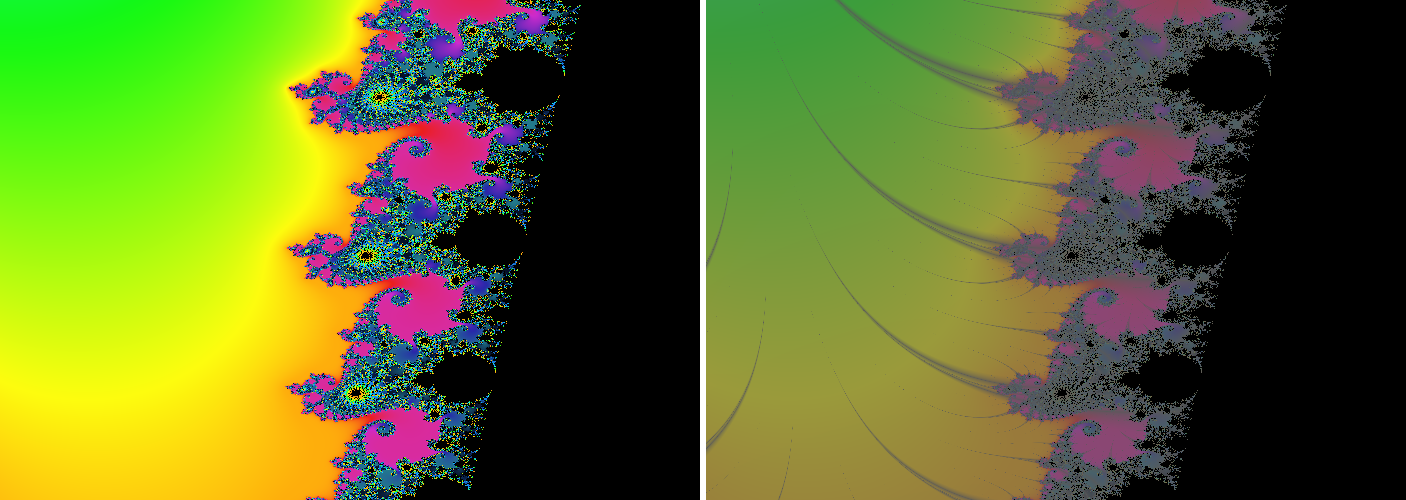
Orbit traps lay a crystalline network of bright veins over the palette. Where an orbit passed close to one of the two axes, the pixel is lightened; everywhere else the palette shows through untouched.
The maths
While an orbit is being computed, the engine remembers the closest it ever came to either axis, \(t = \min_k \min(|\mathrm{Re}\,z_k|,\,|\mathrm{Im}\,z_k|)\) (see Part IV of The Mathematics). Then, with the palette color \(C\):
An orbit that passed exactly through an axis has \(v = 0\) and gets the full glint, a near-white vein. At \(t \ge \text{reach}\), \(v = 1\) and the palette color is left alone. SHARPNESS is an exponent on that ramp: below 1 the ramp climbs quickly and the vein stays thin, above 1 it climbs slowly and the vein is broad and soft.
The parameters
| Slider | Range | What it does |
|---|---|---|
| REACH | 0.05 – 1.5default 0.40 · log | How close to the horizontal or vertical axis an orbit must pass to pick up a vein, in the complex plane. Up wider veins that cover more of the picture.Down only the closest passes show. |
| SHARPNESS | 0.15 – 2.0default 0.45 · log | The profile of the veins: the exponent on the ramp from vein to palette. Up broad, soft veins.Down thin, crisp ones. |
| GLINT | 0 – 0.8default 0.35 | How bright the veins are: the amount of white added at the core of a vein. Up whiter, more obvious veins.Down subtler ones. |
RELIEF
The effect
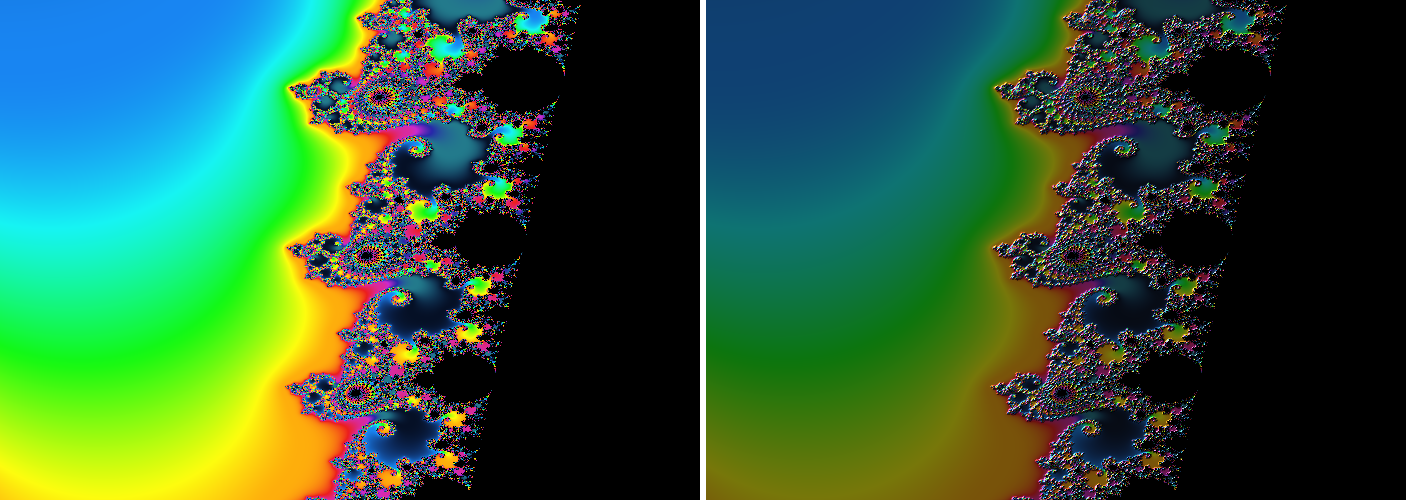
3D relief reads the smooth escape count as a height field, a landscape, and lights it with a real diffuse-plus-specular model: shadowed valleys, lit slopes and glossy highlights.
The maths
The height is \(H = \ln(1+\nu)/\ln(1+\text{maxIter})\), which is 1 (and left unlit) inside the set. Its central-difference gradient \((h_x, h_y)\) is clamped to a length of EDGE CALM, which tames the cliff at the set's edge, and gives the surface normal
where \(D\) is the DRAMA of the light, from 0 to 1. The light is a vector \(\mathbf{L}\) built from a position \((x, y)\) on the picture, each within \(\pm0.85\), with \(r = \sqrt{x^2+y^2}\): its altitude drops as it moves out, \(L_z = \operatorname{clamp}(0.90 - 0.50\,r,\;0.25,\;0.95)\), and \(\mathbf{L}\) is the normalized \((x, y, L_z)\). DIRECTION is the angle of \((x, y)\) around the picture and DRAMA is \(D = r/1.202\), so the two sliders are just the polar form of the same light. The shading of each base color \(c\) is then
with \(\mathbf{h}\) the halfway vector between the light and the viewer, the ambient floor \(a = \operatorname{clamp}(0.45 - 0.25\,D + \text{shadow},\;0,\;0.95)\), and the specular strength \(s = (0.65 + 0.55\,D)\cdot\text{shine}\). A lower, more dramatic light (larger \(D\)) therefore deepens shadows, exaggerates the terrain and sharpens highlights all at once.
The parameters
| Slider | Range | What it does |
|---|---|---|
| DIRECTION | 0 – 360°default 225° | Where the light comes from, in degrees around the picture (225° is the upper left). The same as a two-finger drag while relief is on. Up turns the light one way around the picture.Down the other way. |
| DRAMA | 0 – 100%default 59% | How low the light sits. A lower light casts longer shadows and exaggerates the terrain. The further a two-finger drag goes from the center, the more dramatic the light. Up longer shadows, a more sculpted look.Down a flatter, more overhead light. |
| HEIGHT | 0.25 – 3×default 1.00× | An extra multiplier on how tall the terrain looks, on top of DRAMA. Up steeper, more three-dimensional relief.Down flatter relief. |
| SHADOW | −0.30 – +0.30default 0.00 | Shifts the ambient floor: how dark the shaded side gets. Up lighter shadows.Down deeper shadows. |
| SHINE | 0 – 2×default 1.00× | The strength of the specular highlight: how glossy the surface looks. Up stronger highlights.Down a matte finish. |
| EDGE CALM | 0.2 – 1.4default 0.60 | A cap on the slope used at the set's edge, where the height falls off a cliff. Up a starker, whiter line along the edge.Down a calmer edge. |
SOUND
The effect
In SOUND mode the picture reacts to the microphone. Volume pulses the palette, the pitch of a voice turns the hues, treble makes the glow flare and bass raises the relief drama. SOUND switches GLOW and RELIEF on while it runs, and restores them afterward. The six sliders set how strongly, and how fast, the picture follows the sound.
The maths
The analyzer measures three levels, each from 0 to 1 (overall volume, treble and bass) and, when it has a confident reading, the pitch of a voice in hertz. SENSITIVITY is a gain on the three levels, \(\text{boost}(x) = \min(1,\ x\cdot\text{sensitivity})\), and each effect then has a target it moves toward:
Nothing jumps to its target. Every frame each value chases its own by a fraction of the remaining gap, \(x \mathrel{+}= (\text{target} - x)\cdot\min(1,\ \Delta t\cdot\text{rate}\cdot\text{RESPONSE})\). The base rates are 7 per second for a rising volume pulse and 2.2 for a falling one (a fast attack and a gentle release, like a heartbeat), 4 for hue, 6 for glow and 8 for relief. RESPONSE multiplies all of them together. The spin then displaces the palette forward by up to SPIN of a cycle, and the hue adds to the palette position from Part II.
The parameters
| Slider | Range | What it does |
|---|---|---|
| SENSITIVITY | 0.25 – 4×default 1.00× · log | Input gain: how strongly a given loudness moves the picture. The analyzer already adapts to its own noise floor; this adds an explicit gain on top. Up quieter sounds already have a full effect (good for a distant or quiet source).Down only loud sounds register (good for a noisy room). |
| SPIN | 0 – 0.5default 0.12 cycles | How far volume can push the palette around: the pulse with the loudness. Up a stronger, more visible pulse.Down a subtler one, or none at zero. |
| HUE | 0 – 1default 1.00 | How much of the palette a voice's pitch can sweep across the 80–1,000 Hz vocal range. Up pitch changes shift the colors further.Down the hue stays closer to where it is. |
| GLOW BOOST | 0 – 6default 2.5 | How much high sounds (treble) make the glow flare. Needs GLOW, which SOUND turns on for you. Up brighter neon flares on treble.Down a steadier glow. |
| SHOCKWAVE | 0 – 1default 0.60 | How much low sounds (bass) raise the relief drama, the depth of light and shadow. Up bigger relief shockwaves on bass.Down calmer relief. |
| RESPONSE | 0.25 – 4×default 1.00× · log | How closely the picture follows the sound over time: every attack, release and smoothing rate above, scaled together. Up snappier, follows every beat.Down smoother, slower to react. |